Showing posts with label Computer tips. Show all posts

Tuesday, July 5, 2011


Why? Flatbed scanners commonly become dirty with dust, fingerprints, and hair. When a scanner is dirty, the images may have distortions. 
Procedure: Clean a flatbed scanner's surface by spraying a window cleaner onto a paper towel or cotton cloth and wipe the glass until clean. As mentioned earlier, never spray a liquid directly onto the component.
To clean the outside of the scanner, the same towel or cotton cloth can be used.

Scanner Cleaning


Ctrl + C or Ctrl + Insert
Copy the highlighted text or selected item.

Ctrl + V or Shift + Insert
Paste the text or object that's in the clipboard.

Ctrl + Z and Ctrl + Y
Undo any change. For example, if you cut text, pressing this will undo it. This can also often be pressed multiple times to undo multiple changes. Pressing Ctrl + Y would redo the undo.
Ctrl + F
Open the Find in any program. This includes your Internet browser to find text on the current page.

Alt + Tab or Alt + Esc
Quickly switch between open programs moving forward.
Bonus Tip Press Ctrl + Tab to switch between tabs in a program.
Bonus Tip Adding the Shift key to Alt + Tab or Ctrl + Tab will move backwards. For example, if you are pressing Alt + Tab and pass the program you want to switch to, press Alt + Shift + Tab to move backwards to that program.
Bonus Tip Windows Vista and 7 users can also press the Windows Key + Tab to switch through open programs in a full screenshot of the Window.

Ctrl + Back space
Pressing Ctrl + Backspace will delete a full word at a time instead of a single character.

Ctrl + Left arrow / Right arrow
Move the cursor one word at a time instead of one character at a time. If you wanted to highlight one word at a time you can hold down Ctrl + Shift and then press the left or right arrow key to move one word at a time in that direction while highlighting each word.

Ctrl + Home / End
Move the cursor to the beginning or end of a document.

Ctrl + P
Print the page being viewed. For example, the document in Microsoft Word or the web page in your Internet browser.

Page Up / Space bar and Page Down
Pressing either the page up or page down key will move that page one page at a time in that direction. When browsing the Internet pressing the space bar will also move the page down one page at a time. If you press Shift and the Space bar the page will go up a page at a time.

Top 10 keyboard shortcuts everyone should know


You don't need the http:// portion of a web page

When typing an Internet address you do not need to type http:// or even www. in the address. For example, if you wanted to visit Computer Hope you could just type computerhope.com and press enter. To make things even quicker, if you're visiting a .com address you can type computerhope and then press Ctrl + Enter to type out the full http://www.computerhope.com address.


Quickly move between the fields of a web page

If you're filling out an online form, e-mail, or other text field you can quickly move between each of the fields by pressing the Tab key or Shift + Tab to move back a field. For example, if you're filling out your name and the next field is your e-mail address you can press the Tab key to switch to the e-mail field.
Tip This tip also applies to the buttons, if you press tab and the web developer has designed correctly the button should be selected and will allow you to press the space bar or enter to push the button.
Tip If you have a drop-down box that lists every country or every state you can click that box and then press the letter of the state or country you're looking for. For example, is a drop-down box of States in the United States you could press u on the keyboard to quickly scroll to Utah.
Use Internet search engines to their full potential
Make sure to get the most out of every search result. If you're not finding what you want try surrounding the text in quotes. For example, if you were searching for 'computer help' this actually searches for pages that contain both computer and help and not necessarily pages that have computer and help next to each other. If you search for "computer help" with the quotes around the search query this will only return pages that actually have computer and help next to each other.
Tip Many new computer users also don't realize that in every search box you can press enter instead of having to move the mouse button over to the Search button.

Know your Internet browser shortcuts

There are dozens of different shortcut keys that can be used with Internet browsers. Below are a few of our top suggested Internet browser shortcuts.
- Pressing Alt + D in any major Internet browser will move the cursor into the address bar. This is a great way to quickly enter an Internet address without having to click the mouse cursor in the address bar.
- Hold down the Ctrl key and press the + or - to increase and decrease the size of text.
- Press the backspace key or hold down the Alt key + left arrow to go back a page.
- Press F5 to refresh or reload a web page.
- Press F11 to make the Internet browser screen full screen.
- Press Ctrl + B to open your Internet bookmarks.
- Press Ctrl + F to open the find box in the browser to search for text within the web page you're looking at.

Take advantage of tabbed browsing

Take full advantage of tabbed browsing in all Internet browsers today. While reading any web page if you come across a link you may be interested in open that link in a new tab so it can be viewed later. A new tab can be opened by holding down the Ctrl key and clicking the link or if you have a mouse with a wheel click the link with the middle mouse button.

Try alternative browsers

Most computer users use the default browser that comes included with the computer, with Microsoft Windows this is Internet Explorer. There are several great alternative browsers that are all free to download and use and may have features your current browser does not include. Below are a few of our favorites, try one or try them all.

Top 10 Internet tips and tricks

Sunday, July 3, 2011

Competition
Before you buy a program to ensure that there is a competitive program that can be cheaper or even free. If possible and others who are able to do what you want to do this can save you hundreds of dollars.

A good example of such applications is OpenOffice and Corel WordPerfect, it would be a competitor to Microsoft Word. Both programs are an excellent choice for a word processor, but can be a significant price difference. In the case of OpenOffice, it is 100% free.


Documentation
Ensure that relevant documentation is included. Many applications today will include on-line documentation in general are more than adequate. But it's also good to get a guide or manual application.


License
If you are a company that aims to have the applications used by employees (more than one person), consider license options. It requires that each computer is a product that is put on it is a software license. If a company buys the program and share it with their employees without the proper license would be illegal and can cause your company is facing a criminal trial.

Price
Look at the total price and shop around. Because the software can be changed so easily, you can sometimes save hundreds of dollars on expensive software. If possible, do not buy directly through the company and many times its price doubled the retail price.
Be careful with OEM software. Many dealers will sell applications such as OEM, which require that you buy a computer or motherboard. OEM software is software that came with the big PC manufacturers and will only accept either a CD or just a slim manual and CD. It is not what you would find in retail stores. This option is not a bad choice, it's just important that you are aware of what you get.

Package
Look at the total software package. How many CDs or diskettes covered, what inserts and documents that came, and there is no bonus or extra software included?


Media
Today, the majority of software available on CD and DVD. When you look at the schedule, be sure to have adequate drive that can read in the media, but not common today, an example of why this is important, it is better to get a CD instead of 32 drives.

How to Computer Application ?

How to buy Computer battery ?

When purchasing a hard disk drive, it is important to understand and verify the hard disk drive is suitable for your uses and has or does not have the options you may or may not need. Unfortunately, with hard disk drive technologies changing every day, it is can be sometimes confusing and frustrating when looking to purchase a hard disk drive.

Interface

When looking to purchase a hard disk drive the first and foremost important consideration is the Interface the hard disk drive uses to communicate with the computer. Below is a listing of each of the available interfaces with information how thy may or may not apply to your computer.
  • IDE/ATAPI/ATA One of the more commonly found hard disk drives and used with IBM compatible computers, IDE is generally an easy to install and customize interface. Each IBM computer has the availability for a maximum of four IDE devices, these devices can range from Hard Disk drives to CD-ROM drives. If considering purchasing an IDE/ATAPI/ATA hard disk drive, verify that there are available locations for the drive to be connected to.
  • SCSI Another commonly used interface, SCSI devices are found in Apple computers as well as some IBM computers. The SCSI interface is generally a faster solution when compared to IDE/ATAPI; however, in some cases, they can be more difficult to install. To install a SCSI hard disk drive you must have a SCSI card and an available connection on the SCSI cable connecting to the SCSI card. It is important to remember if you have a Proprietary SCSI card, such as a SCSI card included with the Iomega Jaz drive, this SCSI card may not always allow your hard disk drive to work.
  • External (USB / Fire wire / Parallel)Several external solutions are also available; these include but are not limited to USB Hard disk drive, Fire wire Hard disk drive and Parallel Hard disk drive. When considering an external hard disk drive, it is important to look at the speed difference for transferring data to and from the hard disk drive. In addition, for these external drives to function properly, you must also have the available connection for the drive to be connected to.
Speed
In addition to the interface, it is also important to look at the transfer rates of the hard disk drive; long transfer rates can considerably slow down your computer when transferring larger files. When looking at the hard disk drive, look for specifications listing the RPM (Rotations Per Minute). An example of this would be a speed of 7,200 RPM.

How to buy Hard drive and tips ?

 
Technology

CRT - Today, one of the most commonly used technologies for computer monitors. CRT, or Cathode Ray Tube, is a technology much like what you will find on most TVs. CRT monitors are an affordable solution; however, they are bulky and very heavy.

Flat Panel / LCD - LCD, or Liquid Crystal Display, monitors are similar to what is found on portable computers. LCD monitors overall generally display much sharper of an image, are lighter and more space efficient; however, they are much more of an expensive solution for desktop displays.

Computer plat panel display buying tips section.

Size

When considering purchasing a monitor utilizing the CRT technology it is important to consider the following:

Dimensional Size Size can be one of the more important considerations when purchasing a computer monitor. Monitors are available in 15",17", 19" and 21." Like most things, larger is generally more expensive. The larger the screen, the more amount of viewable space you will be able to work with. We generally recommend users that plan on utilizing their computer for more than one-two hours a day and have the available space purchase at least a 17" monitor. Users who plan on using the computer for graphic art or cad, we highly recommend utilize at least a 21" monitor. Finally, users with little space or plan on using the computer for word processing / e-mail may want to consider a 15" monitor.

Viewable Size - The viewable size of the monitor is a very important consideration and can vary by manufacturer. The viewable size is the size of the viewable area and not the complete monitor.

Dot / stripe pitch

When purchasing a monitor, Dot Pitch or Stripe Pitch is a very important consideration. Dot Pitch measurement is found on most monitors and defines the amount of space (in millimeters) that separates two adjacent pixels that are the same color. The smaller the Dot Pitch, the sharper the image. We recommend that when purchasing a monitor the Dot Pitch be no bigger than 0.25

Stripe Pitch is a measurement used with Trinitron or Diamondtron monitors and is a measurement (in millimeters) that separates two like-colored stripes. The lower the Stripe Pitch the higher the quality of image.

When looking at monitors you should only see a Dot Pitch measurement or a Stripe Pitch measurement. You should not see both of these measurements measuring the same monitor.

Finally, these two different measurements should not be a measurement comparison when deciding between two or more monitors, each technology is different.

Resolution

The maximum resolution is the amount of pixels that can be displayed horizontally x vertically. Be cautious when purchasing a monitor at any size that advertises a large resolution size such as 1,600 x 1,200 for a 15" monitor.

Some monitor manufacturers may allow for such high resolutions at a high cost but the user will never utilize such a resolution. As the monitor increases in size, the image display will decrease; below is a listing of a usable resolution limit by the size of the monitor. These sizes can be debated but are the standard and most easily viewed resolutions.

15" 800 x 600 / 1,024 x 768

17" 1,280 x 1,024

19" 1,280 x 1024

21" - 1,600 x 1,200

Controls

When purchasing a monitor, it is important to look at the available controls of that monitor. The controls allow for modification or adjustment of the viewable settings.

How to buy Monitor and tips ?

Type
The type, or form factor, of the motherboard is a crucial consideration when looking at a motherboard. There are various form factors and not all computer cases can accommodate each form factor. Today, the most commonly found and used motherboard is the ATX motherboard. When looking at the motherboard, make sure your case supports your motherboard form factor. Additional information and help with the form factors can be found on our motherboard page
When looking at who to purchase a motherboard through, consider all different brands of motherboards and vendors who sell those motherboards, as all motherboards will have positive and negative reviews. A listing of motherboard links and manufacturers can be found on the motherboard section of our network.
Considerations
CPU socket / slotThere are a wide variety of different CPU Sockets and Slots. When looking at purchasing a motherboard, ensure it is compatible with the CPU you have or that it will be compatible with the CPU you plan on purchasing. Additional information about CPUs and the Sockets or Slots can be found on our CPU buying tips page.
Drive connectorsDrive connectors can be an important consideration when purchasing a computer. Determine the interface of the drives you plan on using, and ensure that the motherboard supports that interface or has the connector for that interface. An example of such an interface is IDE, EIDE or SCSI. Additional information about hard disk drive buying tips can be found on our Hard drive buying tips page.
Additional information about CD-ROM buying tips can be found on our CD-ROM buying tips page.
Memory slots / typeToday, there is a wide variety of different types and speeds of memory. When looking at purchasing a motherboard, ensure that it is compatible with the memory you currently have or plan on purchasing.  Additional information about Memory buying tips can be found on our Memory buying tips page.
SlotsThe available slots can be an important consideration. Below is a listing of the different slots used in motherboards.
  1. PCI Express - The latest and greatest slot / bus type.
  2. AGP - AGP, or Advanced Graphics Port, is used for video cards as a replacement for PCI.
  3. AMR - AMR, or Audio Modem Riser, is a slot that is used for Audio / Modem cards and is found on some motherboards. This is not a critical slot and has been replaced by the CNR.
  4. CNR - CNR, or Communication and Network Riser, is a slot that supports audio, modem, USB and Local Area Network cards. This slot is highly recommended for any user building a large amount of computers as the cards are generally cheaper than the standard PCI or ISA cards.
  5. ISA - Today, ISA is becoming obsolete and is not found on all motherboards. Unless you have old ISA cards that need to be used, it is recommended you purchase a new motherboard with no ISA slots and additional PCI slots.
  6. PCI - The most widely and commonly used slot.
  • Additional information about each of the above computer bus types.
  • Computer video card buying tips page.
  • Computer sound card buying tips page.
  • Computer modem buying tips page
JumpersJumpers are generally overlooked when considering a motherboard; however, they can be an important consideration, especially for users who plan on overclocking their computer. Below is a listing of some of the jumpers that should be asked about or known when purchasing a computer motherboard.
  1. Does the motherboard have a clear CMOS / BIOS jumper?
  2. Does the motherboard have CPU settings jumpers? Or is it configured through CMOS? Is it auto detect?
  3. Does the motherboard have onboard video / sound? If yes, can they be disabled with jumper or is it done through CMOS? Note: either way is fine as long as it can be disabled.
USB PortsWhile all motherboards today have USB ports, ensure that the motherboard you plan on purchasing has USB ports.

Motherboard buying tips and How to ?


Type The processor can be a very important consideration for users who are building a computer. Today, there are three main processor manufacturers: AMD, Cyrix and Intel. Each of these companies have good and bad reviews, and really each of them are very close in compatibility and reliability. When considering any of these processors verify the motherboard is compatible. For example, if an Intel motherboard is purchased or currently installed into the computer, you will want to consider an Intel Processor, an AMD processor will not work on a motherboard designed for AMD.

  • Computer CPU, heat sink, and fan manufacturer links.
Considerations
Heat SinkIt is highly recommended that all processors have a heat sink. The heat sink helps to allow for the processor to remain cool and therefore run more efficiently. A computer processor with a missing, bad or failing heat sink will cause the computer to lock up, cause errors or encounter other issues.  When looking at a processor, also consider the heat sink that will be attached to that processor and ensure that the processor being purchased is compatible with that heat sink.
Additional information and help on computer heat sinks can be found on our heat sink page.
InterfaceToday, there is a wide availability of interfaces the CPU may connect to. Below is a listing of each of the interfaces and a brief description on each of them.
Slot
Slot A
The slot was first used and introduced by Intel when they released the Pentium II processors. This slot was designed to allow users to install the processor easily into the computer. However, because of the additional cost considerations, Intel has now gone back to the Socket what is now known as the FC-PGA socket. Computers that have the Slot are the Intel Pentium II and early versions of the Intel Pentium III. The AMD processors use the Slot A interface
Socket
FC-PGA
Flip Chip
Coppermine
The socket is the most commonly used and found interface for processors today. The socket has been used in all Intel processors preceding the Intel Pentium II and is now being used for the Intel Pentium III and above processors with the name FC-PGA, which is short for Field-Programmable Gate Array. The FC-PGA is a socket and not a slot processor and is also known as the Intel Coppermine or the Flip Chip.
SlocketSlocket, which is a slot card, can be used to connect a socket or FPGA processor. This is not an actual interface but can be an option for users who have a slot adapter with a computer that supports speeds of a socket or FPGA processor.
When looking at the interface of the CPU, it must match that of what is on the motherboard unless it is possible to use a Slocket. Additional buying tips on computer motherboards can be found on our motherboard buying tips page.
NamesThe names of the processors can be very confusing and are generally used as a method of helping to sell a computer or computer processor. Below is a listing of some of the more commonly used names and a brief description on each of them. Intel family names:
Pentium - The 80586, or P5, the Pentium is the generation above the 486 processor line.
Pentium Pro - Chip designed to help speed up Windows 32-bit software
Pentium with MMX - Processor with additional 57 new instructions and enhanced speed to graphics and multimedia software. MMX is now included in all Intel processors that have been released after this processor.
Pentium II / III - The first of the Intel processors to include the Slot adapters. These processors were the next generations of the Intel Pentium processor.
Intel Coppermine - The Socket (FC-PGA) version of the Intel Pentium III / IV.
Intel Flip Chip - Another name for the Intel Coppermine.
Intel Celeron - The low end Intel processors designed to help lower the prices of the computers by reducing or at first eliminating the level 2 cache.
Pentium IV - The next generation of Intel processors, these processors were over 1GHz and were the FPGA processors.
Additional information and diagrams of each of the above can be found on our CPU help page.
AMD family names:
AMD K6-2 - Socket 7 processor with the 3DNow! technology and first to have the 100MHz bus.
AMD K6-3 - K6-2 chip with Level 2 cache memory that runs at the speed of the CPU.
AMD Duron - Like the Intel Celeron, the AMD Duron is an affordable solution processor allowing for the price in the overall computer to drop.
AMD Athlon - AMD generation with features such as the 200MHz bus speed
AMD Thunderbird - The latest AMD processor, this processor is the socket version.
SpeedThe speed of the processor is an important consideration as it is what will rate the speed of the computer and help the computer run faster overall.  When looking at the speed of processors available, we highly recommend that you do not purchase or consider purchasing a processor that has just been released. The price of the processor will be at a premium price and if you give that processor 2-4 months it will drop in price dramatically.

How to buy Processor (CPU) and tips ?

Subwoofer

For most users a standard pair of computer speakers will suffice. In some cases it is recommended, that if you would like extended bass, that a subwoofer be purchased with the pair of speakers.
3D-sound
If you have a sound card that is capable of 3D-Sound and you are a computer gamer, you may want to consider getting a four, five or six speaker setup.
Power
Today, a standard power cord powers most speakers. However, there are still speakers available that are powered by batteries and USB. If you want something other than a power cord make sure you get what you want.
Appearance
While not thought of as important by many, you may also want to consider the appearance of the speakers. How are the speakers going to position on your desk or monitor? Are the speakers going to fit on your desk, or are they going to be too big? If you have a subwoofer, is it going to be able to be placed on the floor or behind your desk?

How to buy Speaker and tips ?

Technology
The first and foremost important consideration to consider when purchasing a printer is the technology the printer utilizes to print. Today, there are two major technologies available, ink jet and laser.

Ink Jet - Inkjet printers are an affordable and effective solution for home users and home businesses.
Laser - Laser printers are a recommended solution for businesses or networks that require speed and efficiency, and high quality resolution.

Resolution
Resolution on a printer is measured by the amount of dots per inch a printer is capable of printing. When looking at purchasing a printer, it is important to look at the DPI the printer is capable of printing.
It is also important to know that some printer manufacturers may generate their own methods through software for increasing their resolution.
Speed
Speed is another important consideration when looking at computer printers. The speed of a printer is rated in PPM, or pages per minute, and rate anywhere between 4 and 10+ PPM, depending on several factors such as if it is Black and White / Color, text only or full page. You should expect a faster PPM from a laser printer printing text than an Inkjet printer.

Ink / Toner
Ink or Toner is becoming a very important factor when purchasing a printer. Look at the below characteristics of the Ink / Toner used with the printer.

Price - By far the most important factor is price; if the printer becomes a frequently used device you may find that the price of the ink can far surpass the price of the printer. Look how much the ink will cost when it needs to be replaced.

Availability - From where can the ink or toner be purchased? Some printer manufacturers may require that you purchase the ink directly from them; and if purchased from a third-party, cause your printer warranty to become void. Verify that the ink can be purchased from a third-party and if so, from whom.

Type - See what ink or toner used with your printer, and for users considering an Ink Jet printer, see if the printer accepts separate color cartridges. Some manufacturers may include all the cartridges as one cartridge, causing you to have to purchase all the available colors for one color that may be out. In addition, see if the cartridges are just ink or ink and nozzles. Cartridges with ink and nozzles will cost more than those that have just ink.

Cost Per Page - The measurement of the ongoing price of the printer after its initial purchase. It is important to look at the cost per page and see how much you may be paying for the amount of printing you expect to do. Generally speaking, you can expect to pay less for a laser printer than an ink printer when looking at Cost Per Page.

Printer buying tips

Below is a listing of general tips that should be taken when cleaning any of the components or peripherals of a computer as well as tips to help keep a computer clean.
  1. Never spray or squirt any liquid onto any computer component. If a spray is needed, spray the liquid onto a cloth and then use that cloth to rub down the component.
  2. You can use a vacuum to suck up dirt, dust, or hair around the computer on the outside case. However, do not use a vacuum for the inside of your computer as it generates a lot of static electricity that can damage the internal components of your computer. If you need to use a vacuum to clean the inside of your computer, use a portable battery powered vacuum designed to do this job or try using compressed air.
  3. When cleaning a component or the computer, turn it off before cleaning.
  4. Be cautious when using any cleaning solvents; some individuals may have allergic reactions to chemicals in cleaning solvents and some solvents can even damage the case. Try to always use water or a highly diluted solvent.
  5. When cleaning, be careful not to accidentally adjust any knobs or controls. In addition, when cleaning the back of the computer, if anything is plugged in, make sure not to disconnect any of the plugs.
  6. When cleaning fans, especially the smaller fans within a portable computer or laptop it's suggested that you either hold the fan or place something in-between the fan blades to prevent it from spinning. Spraying compressed air into a fan or cleaning a fan with a vacuum may cause damage or back voltage to be generated.
  7. Never eat or drink around the computer.
  8. Limit smoking around the computer.

General cleaning Tips

Although many companies have created products to help improve the process of cleaning your computer and peripherals, users can also use household items to clean their computers and peripherals. Below is a listing of items you may need or want to use while cleaning your computer or computer peripherals.
Keep in mind that some components in your computer may only be able to be cleaned using a product designed for cleaning that component; if this is the case, it will be mentioned in the cleaning tips.
  • Cloth - A cloth is the best tool used when rubbing down a component; although paper towels can be used with most hardware, we recommend using a cloth when ever possible. Caution: We only suggest you use a cloth when cleaning components such as the outside of the case, a drive, mouse, etc. You should not use a cloth to clean any circuitry such as the RAM or motherboard since they can generate ESD that can damage electronics.
  • Water or rubbing alcohol - When moistening a cloth, it is best to use water or rubbing alcohol. Other solvents may be bad for the plastics used with your computer.
  • Portable Vacuum - Sucking the dust, dirt, hair, cigarette particles, and other particles out of a computer can be one of the best methods of cleaning a computer. Over time, these items can restrict the airflow in a computer and cause circuitry to corrode. Do not use a standard vacuum as it can generate a lot of static electricity that can damage your computer.
  • Cotton swabs - Cotton swaps moistened with rubbing alcohol or water are excellent tools for wiping hard to reach areas in your keyboard, mouse, and other locations.
  • Foam swabs - Whenever possible, it is better to use lint-free swabs such as foam swabs.

How to clean the Tools ?

Why? A dirty CD-ROM drive or other disc drives can cause read errors when reading discs. These read errors could cause software installation issues or issues while running the program.
Procedure: To clean the CD-ROM drive we recommend purchasing a CD-ROM cleaner from your local retailer such as a local Radio Shack. Using a CD-ROM cleaner should sufficiently clean the CD-ROM laser from dust, dirt, and hair.
In addition to cleaning the drive with a special disc designed to clean drives users can also use a cloth dampened with water to clean the tray that ejects from the drive. Make sure however that after the tray has been cleaned that it completely dry before putting the tray back into the drive.
See the CD cleaning recommendation for further steps on cleaning each of your CDs.

How to clean CD-ROM, DVD, and other disc drive ?

Why? Headphones that are used by multiple people may need to be cleaned frequently to help prevent the spreading of germs and head lice.
Procedure: If the headphones being used are plastic or vinyl, moisten a cloth with warm water and rub the head and earpieces of the headphones. As mentioned earlier in our cleaning tips, it is recommended that if your headphones are being used for a library or school that you do not use any disinfectant or cleaning solvent as users may have allergic reactions to the chemicals they contain.
Headphones that have cushions also have the availability of having the cushions replaced. Replacing these cushions can also help keep the headphones clean.
Finally, in regards to headphones and the spreading of head lice, if multiple students are using your headphones, you should consider having the students use their own headphones, using bags that are placed over the headphones, or having headphones that can be wiped with warm water after each student has used the headphones.

How to clean the Headphone ?

The below steps are for cleaning a standard desktop keyboard. See the cleaning a laptop keyboard page for steps if you have a laptop.
Dust, dirt, and bacteria
The computer keyboard is often the most germ infected items in your home or office, often it will contain more bacteria than your toilet seat. Cleaning it can help remove any dangerous bacteria. Dirt, dust and hair can also build up causing the keyboard to not function properly.
Procedure: Before cleaning the keyboard first turn off the computer or if you're using a USB keyboard unplug it. Not unplugging the keyboard can result in causing other computer problems as you may press keys that cause the computer to perform a task you don't want it to do.
Many people clean the keyboard by turning it upside down and shaking. A more effective method is to use compressed air. Compressed air is pressurized air contained in a can with a very long nozzle. aim the air between the keys and blow away all of the dust and debris that has gathered there. A vacuum cleaner can also be used, but make sure the keyboard doesn't have loose "pop off" keys that could possibly be sucked up by the vacuum.
If you wish to clean the keyboard more extensively you'll need to remove the keys from the keyboard.
After the dust, dirt, and hair has been removed. Spray a disinfectant onto a cloth or use disinfectant cloths and rub each of the keys on the keyboard. As mentioned in our general cleaning tips, never spray any liquid onto the keyboard.
Substance spilt into the keyboard
If the keyboard has anything spilt into it (e.g. pop, cola, Pepsi, Coke, beer, wine, coffee, milk, etc.), not taking the proper steps can cause the keyboard to be destroyed.
Procedure: Below are a few recommendations to help prevent a keyboard from becoming bad once a substance has been spilt within it.
If anything is spilt onto the keyboard turn the computer off immediately or at the very least disconnect it from the computer. Once done quickly flip the keyboard over helping to prevent the substance from penetrating circuits. While the keyboard is upside down, shake the keyboard over a surface that can be cleaned later. While still upside down, use a cloth to help clean out what can be reached. After cleaned to the best of your ability leave the keyboard upside down for at least one night allowing it to dry. Once dry, continue cleaning the keyboard with any remaining substance.
If after cleaning the keyboard you have keys that stick remove the keys and clean below the keys and the bottom portion of the key.
Finally, if the keyboard still works but remains dirty or sticky before discarding the keyboard as a last resort try washing the keyboard in the dishwasher.
If after doing all the above steps the keyboard does not function properly or at all it's recommended you buy a new keyboard.

How to clean the Keyboard ?

Why? Dirt, dust, and finger prints can cause the computer screen to be difficult to read.
Procedure: Unlike a computer monitor, the LCD / flat-panel display is not made of glass, therefore requires special cleaning procedures.
When cleaning the LCD screen it is important to remember to not spray any liquids onto the LCD directly, press gently while cleaning, and do not use a paper towel as it may cause the LCD to become scratched.
To clean the LCD screen we recommend that you use a non-rugged microfiber cloth, soft cotton cloth, or Swiffer duster. If a dry cloth does not completely clean the screen, you can apply rubbing alcohol to the cloth and wipe the screen with the damp cloth. Rubbing alcohol is used to clean the LCD before it leaves the factory.

How to clean the LCD ?


Why? Dust and especially particles of cigarette smoke can build up and corrode circuitry causing various problems such as computer lockups
Warning When inside the computer take the necessary ESD precautions and try to avoid unplugging any cables or other connections.
Procedure: Our recommendation when cleaning the motherboard from dust, dirt, or hair is to use compressed air. When using compressed air, hold it in the up-right position; otherwise, it is possible chemicals may come out of the container that could damage or corrode the Motherboard or other component within the computer. Also, ensure when using compressed air that you always blow the dust or dirt away from the motherboard, or out of the case.
Another good alternative to compressed air is to use a portable battery powered vacuum that can effectively remove the dust, dirt, and hair from the motherboard completely and prevent it from getting trapped within the case. However, do not use a standard electricity powered vacuum as it can cause a lot of static electricity that can damage the computer. When using the vacuum it is vital that you stay a couple inches away from the motherboard and all other components to help prevent contact as well as to help prevent anything from being sucked into the vacuum. Ensure that you do not remove any small components with the vacuum such as jumpers.
Tip When cleaning the inside of the case also look at any fans or heat sinks. Dust, dirt, and hair collects around these components the most.

How to clean the Motherboard ?

Why? A dirty optical-mechanical mouse (mouse with a ball) can cause the mouse to be difficult to move as well as cause strange mouse movement.
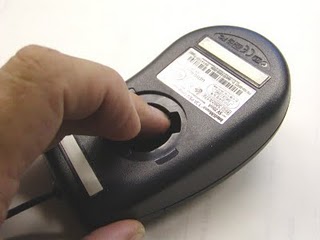
Procedure: To clean the rollers of an optical-mechanical mouse, you must first remove the bottom cover of the mouse. To do this, examine the bottom of the mouse to see what direction the mouse cover should be rotated. As you can see in the below illustration, the mouse cover must be moved counter clockwise. Place two fingers on the mouse cover and push the direction of the arrows.
Once the cover has rotated about an inch, rotate the mouse into its normal position, covering the bottom of the mouse with one hand and the bottom should fall off including the mouse ball. If this does not occur, attempt to shake the mouse gently.
Once the bottom cover and the ball are removed, you should be able to see three rollers located within the mouse. Use a cotton swab, finger, or fingernail to remove any substance. Usually, there will be a small line of hair and dirt in the middle of the roller, remove as much as this substance as possible.
Once you have removed as much dirt and hair as possible, place the ball back within the mouse and place the cover back on.
If the mouse still appears to be having the same issue, repeat the above process; if after several attempts the mouse is still having the same issues, it's likely that your mouse has other hardware issues and we recommend that it be replaced.
Note: Cleaning your mouse pad with a damp cloth can also help improve a computer's mouse movement.
Why? To help keep a mouse clean and germ free it can be helpful to clean the mouse.
Procedure: Use a cloth moistened with rubbing alcohol or warm water and rub the surface of the mouse and each of its buttons.

How to clean the Mouse ?


Why? Cleaning the outside of a printer can help keep the printer's appearance looking good; and in the case of a printer that is used by many different people, keep the printer clean of germs.
Procedure: First, make sure to turn off the printer before cleaning it. Dampen a cloth with water or rubbing alcohol and wipe the case and each of the buttons or knobs on the printer. As mentioned earlier, never spray any liquid directly onto the printer.
Why? With some printers it may be necessary to clean the inside of the printer to help keep the printer running smoothly.
Procedure: Because of how many different printers there are, steps in cleaning printers, and printer manufacturer policies on cleaning the inside of the printer, we recommend you obtain the printer cleaning steps from your printer manufacturer.

Printer Cleaning